Components
LaunchPad
A generated web app with a Draft you change safely, numbered versions, and one live version your end users see.
- Everyone
- Technical
Last reviewed
A LaunchPad is the web app a Solution shows to people: a dashboard, a tracker, a portal, an assistant with a chat panel. The Builder writes it for you when your request needs a user interface, and you can keep changing it by chat. It has a Draft you can change safely, numbered versions, and one live version your end users see.
Note
In one sentence: a LaunchPad is a generated front-end app that reads data only through the Solution's Flex Gateway, so it needs no API address, dataset ID or credential of its own.
Why it matters
- From request to working app in one conversation. No front-end project to set up and no build pipeline to maintain.
- Safe to change. Changes to the app's files land in the Draft, and end users keep seeing the live files until you deploy (the first real build deploys itself). Changes to the data, saved queries, gateway endpoints, Flows and Agents the app uses reach the live app as soon as they are made or published.
- Nothing sensitive inside the app. Data comes only through gateway endpoints, so the app itself holds no secrets. Those endpoints answer without sign-in until an Identity is attached to the gateway or an endpoint requires sign-in.
- Your address. Where the deployment publishes workspace addresses, apps are served on your
workspace's own address,
<workspace>.apps.<domain>, so the people using them see who built them. The shared apps address keeps working either way.
Key concepts
| Term | What it means |
|---|---|
| Draft | The working copy, shown in the Studio preview at /<app>/preview. Every change to the app's files lands here. |
| Deployed | The live app at /<app>. Its files change only when it is deployed; the data and services it calls can change sooner. |
| Version | An immutable snapshot of a past deploy: v1 is the placeholder page the app was created with, then v2 and so on. A deploy refused before it starts (the Draft has no index.html) leaves the live app as it was; a deploy that fails while copying files can leave the live app incomplete until the next successful deploy. |
| Pinned gateway | The one Flex Gateway the app resolves its endpoints against. By default every LaunchPad in a Solution uses the Solution's first enabled gateway, but an app can be pinned to another gateway in the same Solution. |
| Connected Fact Base | A Fact Base the Builder may write this app's queries against. Connections are many-to-many, within the same Solution only. |
runQuery and runAction | How the app reads a saved query and runs a published Flow behind a button. |
| App kit | A shared script with the query, action, chart and formatting helpers. It is seeded by the platform, not written by the model. Apps built before the kit existed keep their own copies of these helpers. |
How it works
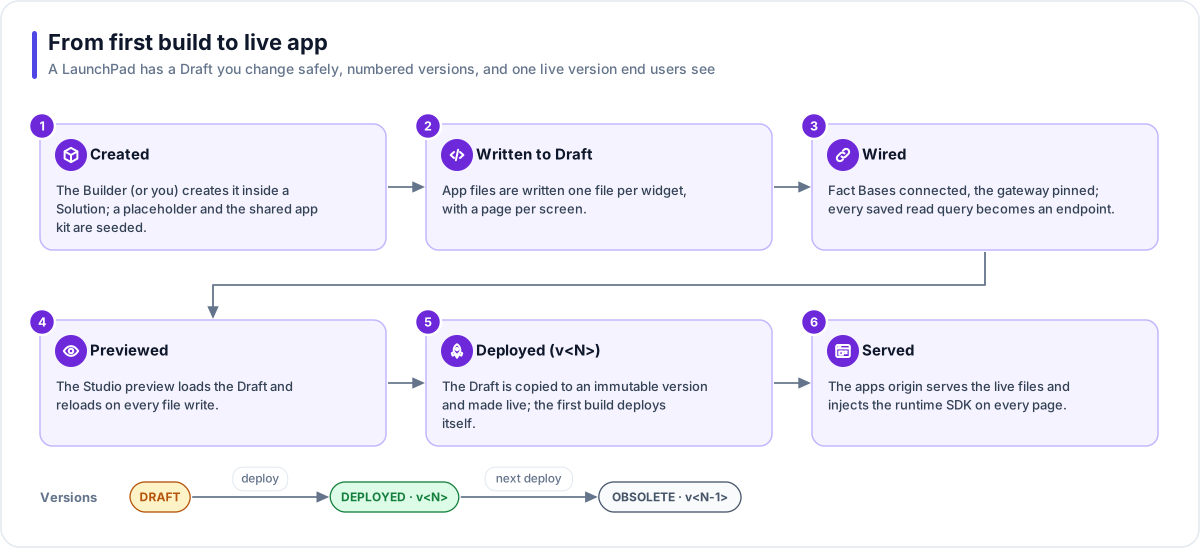
- Created. The Builder (or you) creates the LaunchPad inside a Solution. A placeholder page and the shared app kit are seeded.
- Written to Draft. A new app is written one file per widget, with a separate page for each distinct screen; an app built before that layout keeps its single-file shape. The Builder's finish check flags any script that calls the Studio's API directly or names its address.
- Wired. Fact Bases are connected and the gateway is pinned. Once the app exists, each read query
the Builder saves becomes a gateway endpoint straight away, named after the query (or
<fact base>.<query>when the Solution has more than one Fact Base), so the preview works while the build is still running. A query that writes data is never exposed automatically, and a query saved by hand in the Studio is wired the next time the Builder wires the app. - Previewed. The Studio preview loads the Draft and reloads on every file write.
- Deployed. The Draft is copied to an immutable version and becomes the live one. The first real build deploys itself; after that, deploying is your decision.
- Served. The apps address serves the live files and adds the runtime SDK to every page.
How the running app gets its data
- The browser loads the page from the apps address, with the runtime SDK already in it.
- The app calls
runQuery(name, params). The SDK posts to the app's own address: no cross-origin calls and no API address in the app. - The Flex Gateway finds the endpoint by name. If the endpoint requires sign-in, the caller must be signed in.
- The saved query runs under a Fact Base role, so table permissions and row policies apply to that person.
- Rows come back in one consistent envelope. A widget either renders them or shows a visible error with a Retry button, never a silent failure.
What a generated app is made of
| Part | What it is |
|---|---|
| Fixed stack | Vue 3 and Tailwind, with ECharts, Leaflet, Grid.js, Day.js and CountUp for charts, maps, tables, dates and counters. Plain files, no bundler. |
| Structure | New apps: a shared kit, one file per widget, and a page per screen, linked with ordinary links. Apps built before this layout keep a single-file app. |
| Safe by construction | The Builder is instructed to show server data as text, never as raw HTML, and the platform's own chat panel builds its messages as text. Actions that are not wired yet show a "coming soon" notice. |
| Self-healing | If the app's list of endpoints is out of date, it refreshes once before showing an error. The gateway applies endpoint and sign-in changes as soon as they are saved (within about 30 seconds if a change notice is missed); an open page picks up other changes when it is reloaded. |
Where you work with it
LaunchPads are listed under Apps → Launchpads, and each one lives inside its Solution. Its Builder view has a Files tab with every file in the Draft, Versions lists each deploy (version, status, change note, modified and deployed dates) and offers Deploy when the Draft has undeployed changes, and the Solution Builder's preview shows the Draft next to the chat. A note appears in the chat when a deployed app has changes that are not deployed yet. Workspace admins can use Preview as on the Solution's Launchpads list to open the live app's assistant as a signed-in member, or a custom mix of access tags, would get it: answers are limited to what those tags allow and its send and write tools are turned off. The rest of the app behaves as it normally does.
Works with
- Fact Base: the Builder writes the app's queries against the Fact Bases it is connected to; at run time the app can call any query endpoint on its gateway, within the same Solution.
- Flow: buttons run published Flows through flow endpoints.
- Agent: chat panels talk to published Agents through agent endpoints.
- File Store: upload and download widgets use file endpoints, and uploads can feed a Doc Base.
- Identity: decides whether and how end users sign in. The app can show a Sign in button in its header (and the signed-in name with Sign out); signing in happens on the identity provider's page.
- Interactive cards: documents and forms inside an app's chat panel.
Governance and limits
| Area | What applies |
|---|---|
| Boundary | Owned by one Solution (or one Template). App files are stored under the workspace's prefix, and every file operation needs the workspace's scope or it fails. |
| Access | People who can open the Solution can edit the Draft and deploy. End users need no Studio account: the gateway decides, per endpoint, whether they sign in. |
| Versions | Deploying is explicit, except for the first build. Each deploy records an immutable, numbered version and deploys always move forward. |
| Safety | The app needs no API address, dataset ID or credential, and the Builder's finish check flags a hard-coded API address. Data flows only through gateway endpoints. The apps address stays frameable so the Studio preview works. |
| Limits | One pinned gateway per LaunchPad; by default the LaunchPads in a Solution share its first enabled gateway. The address is fixed at creation; the name can be changed. Where the deployment publishes workspace addresses, each workspace has its own apps address, and the shared one keeps working everywhere. |