Components
File Store
Governed storage for files, with every revision kept, a scan verdict before anything is served, per-store policy and a log of every read.
- Everyone
- Technical
Last reviewed
A File Store holds a Solution's files: uploads from an app, contracts, exports, attachments. Every revision is kept, every file gets a malware-scan verdict before anyone can download it, and every read is logged. Rules for access, size, type and retention are set on the store, so "public uploads" and "internal contracts" can be two stores with two policies.
Note
In one sentence: a File Store is the Solution's governed file cabinet: it owns the bytes, and everything else refers to a file by a reference that is checked again on every use.
Why it matters
- Nothing unsafe is handed out. A file is served only after a clean scan verdict, or when your deployment has no scanner configured.
- Nothing is lost. Every upload to the same path becomes a new version; a restore moves forward instead of rewinding.
- Answers for auditors. The access log shows who downloaded, previewed or listed each file and through what (the Studio, an app, a Flow or an Agent), beside the audit trail of who changed it.
- Policy per store. Allowed types, maximum size, retention and default audiences are set once for a store and apply to every file in it.
Key concepts
| Term | What it means |
|---|---|
| Store | The boundary for access, retention, quota and type policy. A file lives in exactly one store. |
| Folder | A label on a file, not an object. Moving or renaming is a metadata change, never a copy. |
| Version | One immutable revision, never overwritten. Identical bytes do not create a new version. |
| Scan status | Pending, Clean, Skipped (no scanner configured), Infected or Failed. Only Clean and Skipped are servable. |
| Audience | A tag on a file that must match a tag the caller holds. A restricted file answers "not found", never "forbidden". |
| File reference | The small handle a file becomes when it leaves the store. It grants nothing by itself and is re-checked on every use. |
| Access log | The record of who read a file, beside the audit trail of who changed it. |
How it works
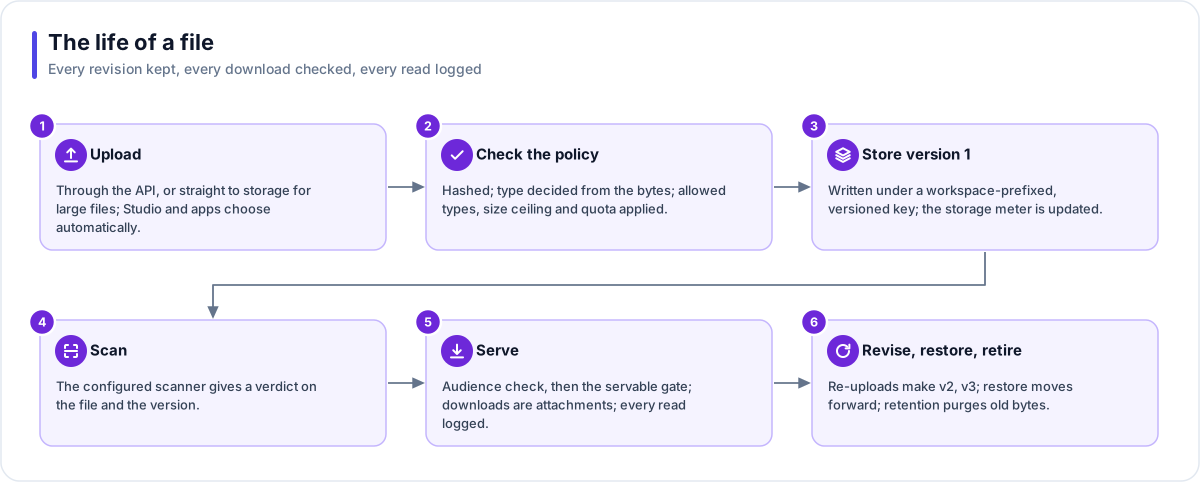
- Upload. Through the API, or straight to object storage for large files. Studio and the app SDK choose the right path automatically.
- Check the policy. The file is fingerprinted, its type is decided from its content rather than its name, and the store's allowed and denied types, size ceiling and your workspace quota are applied.
- Store version 1. The bytes are written under a key that starts with your workspace and never reuses a revision. The storage meter is updated.
- Scan. The configured malware scanner gives a verdict, which lands on both the file and the version. If the verdict is Infected, the bytes are deleted and the record is kept.
- Serve. The audience check runs, then the servable check. Downloads are always attachments with a content type the server decides. Every read is logged.
- Revise, restore, retire. A re-upload to the same path makes version 2, 3 and so on. A soft delete hides a file; the retention sweep deletes it for good after the store's retention window; a purge is immediate.
Who touches files, and how
| Surface | What it can do |
|---|---|
| Studio | Browse stores, folders and files; upload; tag audiences; restore a version; set the store policy. |
| A generated app | Upload, list, read metadata and download through a Flex Gateway file endpoint. Folders can be fixed, per end user or per session. |
| An Agent | List and read by default. Write only when granted. A download link only after the full access check passes. |
| A Flow | Fetch a web address into the store, read, write, copy, send as an email attachment and delete. Every write waits for its own scan verdict. |
| A Doc Base | Indexes a file by reference. The file cannot be deleted while a document points at it. |
Policy and retention
| Store policy | Retention |
|---|---|
| Default audiences for new files | Soft-deleted files are deleted for good after the retention window |
| Maximum file size (can only lower the platform ceiling) | Versions past the retention count lose their bytes; their history stays |
| Allowed and denied types; require a scan before serving | The access log ages out on the workspace's retention window |
| Version retention and retention days; refuse anonymous uploads from apps | A file a Doc Base still uses is skipped, never forced |
Where you work with it
File Stores are listed under Data Studio → File Stores. Each store has its files, its policy settings and its Access log. Some stores are managed by the platform on behalf of another resource (a Doc Base's own store, a Fact Base's sample data, the Builder's chat attachments) and cannot be renamed or deleted on their own.
Works with
- Doc Base: indexes files from its own or linked stores, automatically if a link says so.
- Fact Base: keeps its sample data in a managed store. Solution exports are saved as files too.
- Interactive cards: a document card presents a file inside a conversation.
- Flow and Agent: move files by reference, never by copying bytes around.
Governance and limits
| Area | What applies |
|---|---|
| Boundary | Owned by one Solution. Every stored object's key starts with the workspace, so nothing can cross workspaces or overwrite another revision. |
| Access | Up to 32 audience tags per file. Studio users are trusted; end users are filtered by sign-in claims and assigned tags. Every read is logged with who read it and through what. |
| Versions | Every revision is immutable; a restore is forward-only; version retention removes old bytes but keeps the history. |
| Safety | Nothing is served while a scan is pending, infected or failed. Downloads are always attachments. Direct upload links last 5 minutes and download links 15 minutes, each for one file. |
| Limits | 100 MB for an ordinary upload and 5 GB direct to storage. Names up to 255 characters; folders up to 12 levels deep. Storage quota is per workspace and shared with Fact Base data. |