Governance
Platform operations
What Flexday staff can see and do through the Admin Console, and how support access to your workspace stays under your control.
- Everyone
- Functional users
Last reviewed
Flexday staff operate the platform through the Admin Console, a separate application with its own sign-in, its own roles and its own address. It is how workspaces are created, plans and quotas are set, and the platform's health is watched. A support session inside your workspace needs your workspace's support-access setting to be on, is read-only unless staff choose write access when starting it, is time-limited and recorded, and your owners are emailed when it starts.
At a glance
- A separate staff plane. Different address, different identity provider, different roles.
- Your setting. Support access is on by default; an owner can switch it off at any time, which refuses new sessions and ends live ones.
- Read-only by default. Write access is chosen when a session starts, and is recorded as its own event.
- Everything recorded. Staff actions are attributed to the staff member in your audit trail, and your owners are emailed when a session starts.
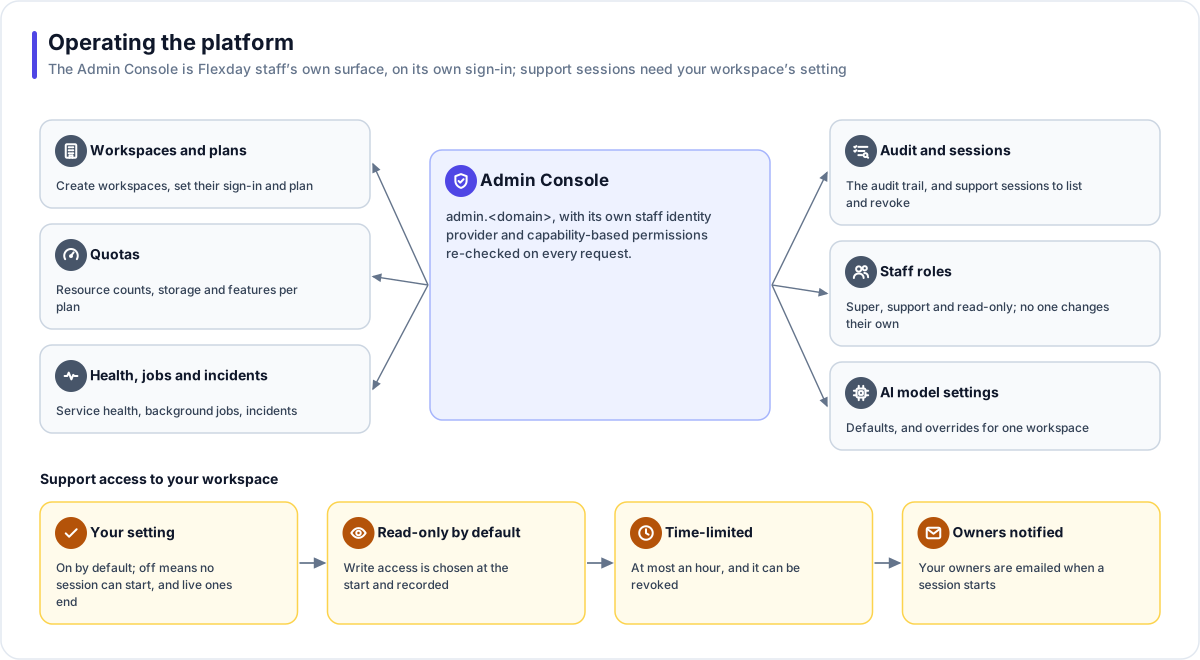
What the Admin Console does
| Area | What staff can do |
|---|---|
| Workspaces | Create a workspace with its sign-in and its first owner; it becomes active only when every step has succeeded. Suspend, offboard and restore workspaces, and start an export of one, which only that workspace's owners and admins can download. |
| Plans and quotas | Set a workspace's plan and quotas: resource counts, storage and features. |
| Health | Watch service health, background jobs and failed jobs, and retry or cancel a job. |
| Audit and sessions | Read the audit trail across workspaces, and list and revoke support sessions. |
| AI models | See the model catalogue, and set a workspace's model choices, each change recorded against the staff member. |
| Search | Find workspaces and people across the platform. |
Staff roles
| Role | Scope |
|---|---|
| Super | Full platform administration, including managing other staff and purging an offboarded workspace early. |
| Support | Support sessions, plans and quotas, suspending, offboarding, restoring and exporting workspaces, retrying and cancelling jobs, resetting a workspace's owner and changing its sign-in setup. |
| Read-only | View only. |
Permissions are checked on the server on every request. Staff cannot change their own role, and the last super administrator cannot be removed. Actions taken in the Admin Console itself, outside a support session, do not depend on your support-access setting; they are recorded against the staff member.
Support access to your workspace
| Safeguard | What it means |
|---|---|
| Your setting | Support access is on by default. A workspace owner switches it off or on under the workspace's Settings; off refuses new sessions and ends live ones at their next request. |
| Read-only by default | A session is read-only unless staff choose write access when starting it. That choice is recorded as its own event and stated in the email to your owners. |
| Time-limited | Every session expires (30 minutes by default, at most an hour), and staff can revoke it at any time. |
| Owners notified | Your owners are sent an email each time a session starts, with its access level, reason and expiry. |
| Reviewable | Workspace admins can see who accessed the workspace, with what power, why and when, under Settings → Support sessions. |
| Attributed | Every action in a session is recorded against the staff member, never against one of your users. |
| Bounded | A session can never change your workspace's sign-in settings, and every gateway refuses support tokens, so your apps and APIs cannot be called with them. |
The hand-off from the Admin Console to Studio uses a single-use code that lasts about 30 seconds; the session token itself never crosses between the two addresses.
What an evaluator can verify
| To confirm | Where to look in a trial |
|---|---|
| That support access is yours to control | The workspace's Settings, Support access: an owner can choose Disable support access. Ask Flexday to try to start a session while it is off: the request is refused. |
| Who from Flexday has accessed the workspace | Settings, Support sessions (owners and admins): staff member, access, reason, when it started and its status. Your owners also receive an email for each session. |
| That a read-only session cannot change anything | During a read-only session, ask the staff member to try to edit a resource: the platform refuses it and says the session is read-only. |
| That staff work is attributed to staff | After a session, read the workspace's audit trail through the platform's API (workspace admins): entries made in the session carry the staff member. |

In a private deployment
In a private-cloud deployment your own platform team operates the Admin Console, with a staff identity provider you configure. The same safeguards apply.