Governance
Identity and access
How builders, end users and Flexday staff each sign in, and how workspace roles and Solution roles decide what every person can do.
- Everyone
Last reviewed
Flexday AI answers two separate questions about people. Who may sign in to build, in Studio? And who may sign in to use what was built, in a generated app, over the API or in Teams? The first is your workspace's sign-in and roles. The second is the Identity you attach to each Solution's gateway. Flexday staff sign in somewhere else entirely.
At a glance
- Your identity provider decides who someone is. Flexday AI decides what they may do: workspace, roles, grants and access.
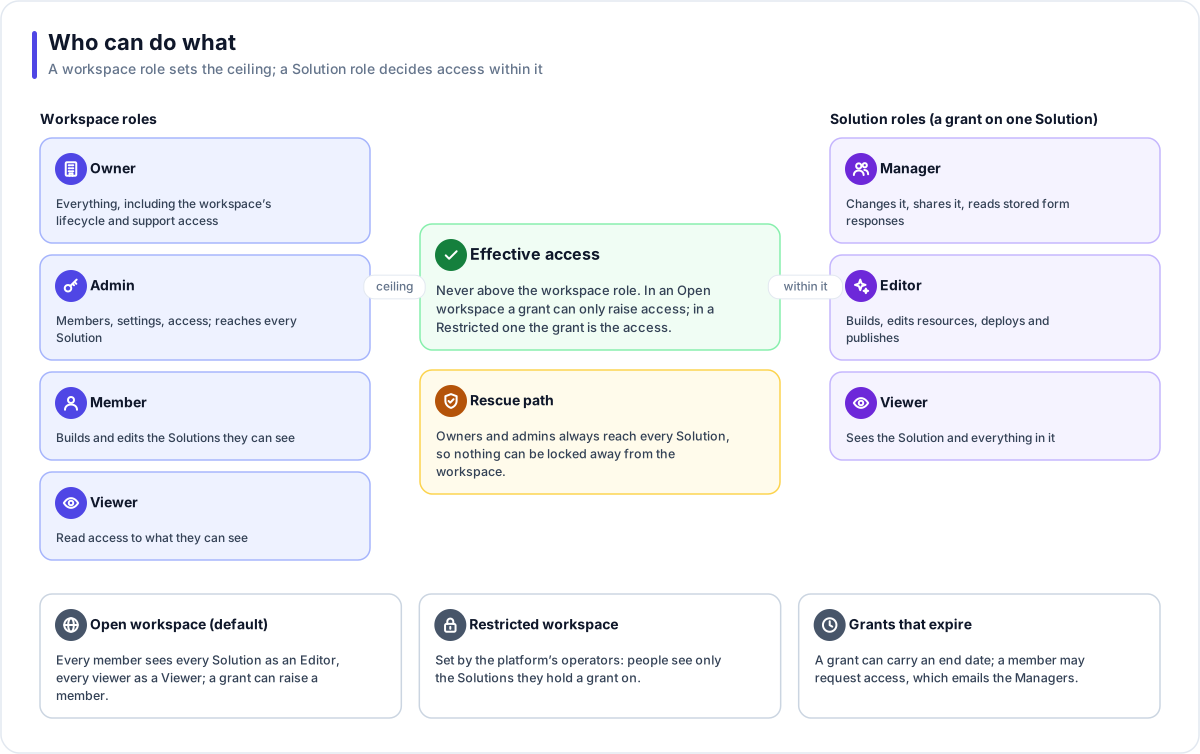
- Two layers of roles. A workspace role sets the ceiling; a Solution role decides access within it.
- Open or Restricted. By default every member sees every Solution. The platform's operators can set a workspace to Restricted, so that members and viewers see only the Solutions they hold a grant on; owners and admins still see every Solution.
- End users need no Studio account. Their sign-in is configured per Solution, with any of nine mechanisms.
- Staff are separate. The Admin Console has its own sign-in, and a support session inside your workspace needs your workspace's support-access setting to be on.
Signing in to build (Studio)
Each workspace chooses how its people sign in:
| Mode | What it means | Typical fit |
|---|---|---|
| Pooled | The workspace shares Flexday AI's sign-in pool; membership sets who belongs | Most workspaces |
| Dedicated | The workspace gets its own user pool | Data residency, branding, or a step towards your own SSO |
| Federated | Your own identity provider owns your users, over OpenID Connect or SAML (through a pool) | Enterprises with existing single sign-on |
Supported providers include Microsoft Entra ID, Microsoft Entra External ID, Amazon Cognito and any OpenID Connect or SAML provider. Rules that keep workspaces apart:
- A token from one workspace's provider cannot act in another. A pooled token presented to a workspace whose own provider is configured is refused.
- People are not merged across providers. Only pooled sign-in links accounts by verified email; a person in your own provider is yours alone.
- Invitations honour the workspace's own provider. An invitation for a workspace with its own provider is accepted by signing in there.
- Auto-join by domain. Owners can list email domains whose verified users join automatically as members. This is set through the platform's API; the Studio has no screen for it yet.
Workspace roles
| Role | What they can do |
|---|---|
| Owner | Everything an admin can do, plus lifecycle actions (offboarding, restoring and exporting the workspace), granting or removing owners, and the support-access setting. A workspace always has at least one active owner. The plan is set by Flexday. |
| Admin | Manage members and invitations and most settings, including AI models. Reaches every Solution, and sees the whole workspace's usage and cost. |
| Member | Build Solutions and everything in them. |
| Viewer | Read access to what they can see. |
Solution roles
| Role | What they can do |
|---|---|
| Manager | Everything an Editor can, plus add and remove people and, through the platform's API, read stored form responses. |
| Editor | Build, edit resources, deploy and publish. |
| Viewer | See the Solution and everything in it. |
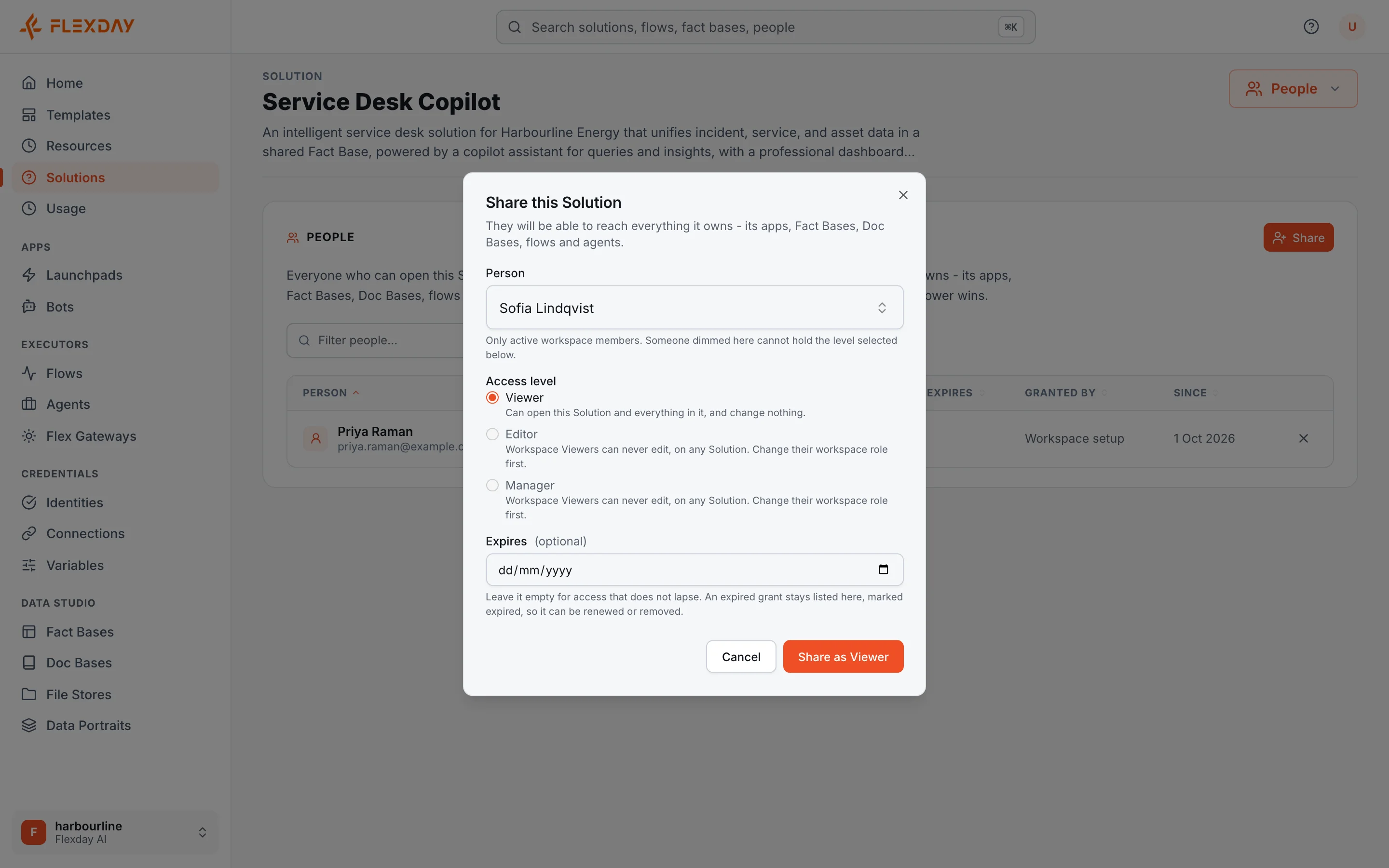
A Solution role never lifts anyone past their workspace role. A workspace Viewer can never be granted Editor or Manager on a Solution: the Share dialog greys those levels out and the server refuses them. Owners and admins always reach every Solution, so a Solution whose last Manager leaves is never stranded.
Open and Restricted workspaces
| Setting | Behaviour |
|---|---|
| Open (default) | Every member sees every Solution as an Editor, and every viewer as a Viewer. No grants needed. A grant can raise a member above that default, up to Manager, but never lowers anyone. |
| Restricted | Members and viewers see only the Solutions they hold a grant on, at the level the grant gives; owners and admins still see every Solution. The database hides the rest, so an unshared Solution is invisible, not forbidden. |
The platform's operators set a workspace to Restricted; there is no Studio or API control for it in this release. Grants can carry an expiry date. A workspace member who cannot see a Solution can request access, which emails its Managers, or the workspace's owners and admins if it has none. An admin can ask the platform's API why a person can or cannot see a Solution and get the answer: their role, the grant, an expired grant, or nothing. In a Restricted workspace the usage dashboard narrows to the Solutions you can see, unless you are an owner or admin.
Signing in to use what was built
End users sign in through the Identity attached to a Solution's Flex Gateway: your workforce single sign-on, a customer identity provider, a SAML provider federated through a user pool, or machine credentials for systems. Each endpoint is Inherit, Required or Anonymous, and rules on scopes, claims and email domains can narrow who gets in. Claims and access tags decide which documents and files a person may see, and which Fact Base rows.
Flexday staff
Flexday staff use the Admin Console with their own identity provider and their own roles (super, support and read-only). Staff cannot change their own role, and the last super administrator cannot be removed. A support session in your workspace:
- needs your workspace's Support access setting to be on. It is on by default; an owner can switch it off, which refuses new sessions and ends live ones,
- is read-only unless staff choose write access when starting it, which is recorded as its own event,
- lasts 30 minutes by default and at most an hour, and can be revoked,
- sends your owners an email when it starts,
- is attributed to the staff member in your audit trail, never to one of your users,
- can never change your workspace's sign-in settings, and is refused by every gateway.
Outside a support session, staff with the support role can also reset a workspace's owner and change its sign-in setup from the Admin Console. See Platform operations.
What an evaluator can verify
| To confirm | Where to look in a trial |
|---|---|
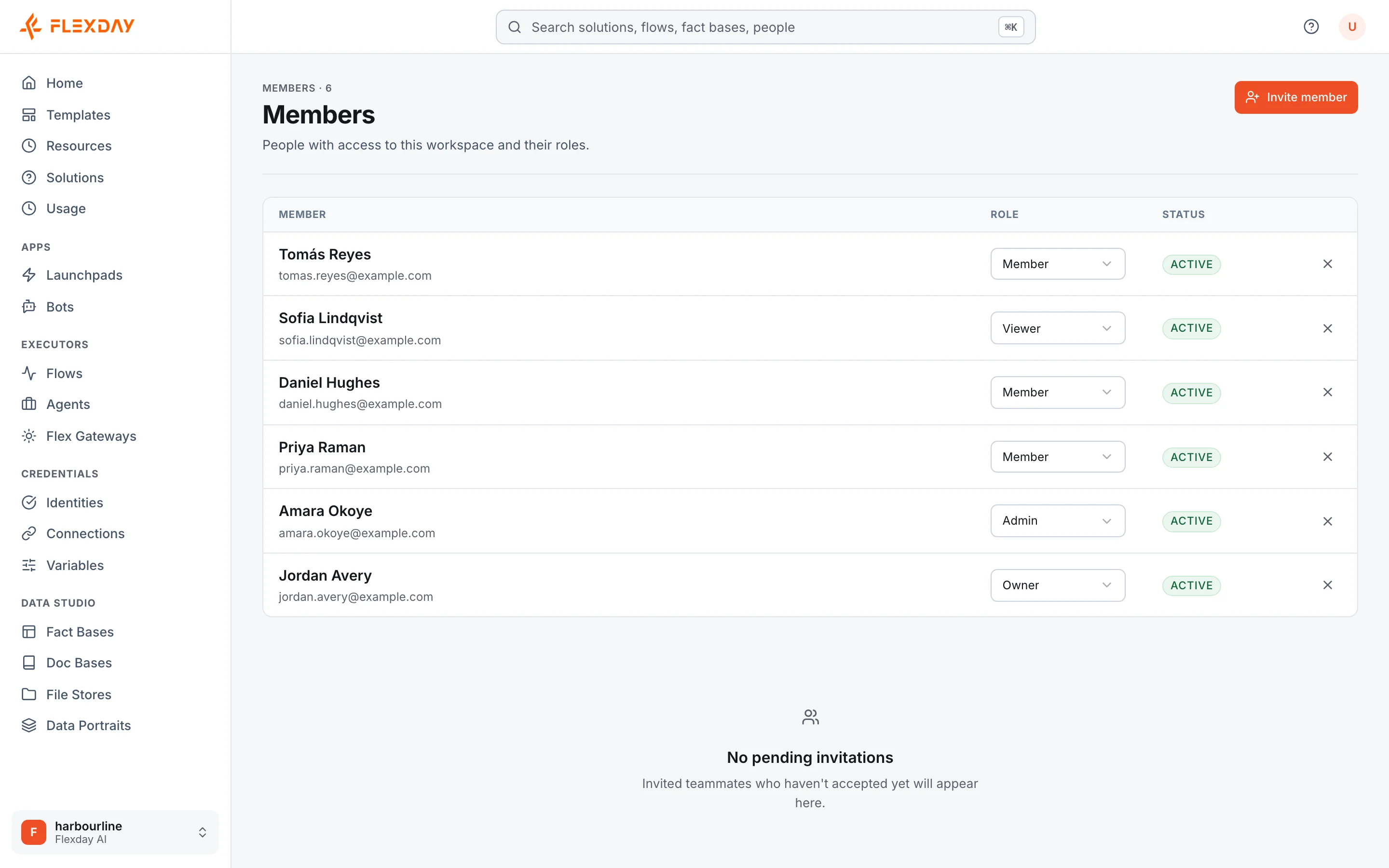
| Who belongs to the workspace, and with which role | Members (in the workspace menu): each member's role and status, and pending invitations. Only owners and admins can change them. |
| That Solution grants work as described | A Solution's People tab: each person's workspace role, their access on this Solution, its expiry and who granted it. Use Share to grant access, then sign in as that person. |
| That a Solution role cannot lift a workspace Viewer | In a Solution's Share dialog, the Editor and Manager levels are unavailable for a workspace Viewer, with the reason shown. |
| That end users sign in through your provider | A Solution's Identities, then Configuration: the provider, and the Authorization rules (required scopes, allowed email domains, required claims). Each gateway endpoint's Auth column shows Inherit, Auth required or Anonymous. |
| That support access is under your control | The workspace's Settings: Support access (an owner can disable it) and Support sessions (who accessed the workspace, with what access, why and when). |