Components
Workspace
Your organisation's own space in Flexday AI: members, roles, settings, Solutions and Templates, kept apart from every other workspace.
- Everyone
Last reviewed
A workspace is your organisation's own space in Flexday AI. It holds your members and their roles, your plan and settings, and every Solution and Template you build. Nothing you build is visible to another workspace. The one thing every workspace can read is the global Template catalog that Flexday AI publishes.
Note
In one sentence: A workspace is the outer boundary of everything your organisation does in Flexday AI, with its own people, roles, plan, settings and data.
Why it matters
- One boundary for the whole organisation. Your Solutions and everything in them are kept apart from every other customer by the database itself, not just the application. Members, quotas, AI settings and usage records are kept apart by the application, which filters them by workspace.
- A small, clear set of roles. Four workspace roles decide who manages people and settings, who builds, and who has read access.
- Sharing inside the workspace can narrow to each Solution. By default every member can see every Solution. Once Flexday AI's operators apply Restricted access to your workspace, each person sees only the Solutions shared with them.
- You control outside help. Flexday AI support can open a session only while support access is on. Sessions are read-only by default, and owners are emailed every time one starts.
- Your secrets stay sealed. Secret Variables are sealed with your workspace's own key in Flexday AI's encrypted storage (the default), or in AWS Secrets Manager or Azure Key Vault where the deployment is set to use one. Where they are kept is a deployment setting, not a workspace choice.
Key concepts
| Term | What it means |
|---|---|
| Workspace | Your organisation's space: members, roles, plan, settings, Solutions and Templates. |
| Short name | The fixed name in the workspace's Studio address and, on deployments that publish workspace app addresses, in its own apps address, <workspace>.apps.<domain>. The display name can change; the short name cannot. |
| Member | A person who belongs to the workspace, with one workspace role. One person can belong to several workspaces and switch between them. |
| Workspace roles | Owner, Admin, Member or Viewer: the level of access a person holds across the workspace. |
| Invitation | An email invitation to join with a chosen role. Only someone who signs in through the workspace's own sign-in with the invited email address can accept it. It expires if unused (after 7 days by default). |
| Solution access | Open (the default): every member sees every Solution. Restricted: each person sees only the Solutions they have been added to. The platform's operators set it per workspace; there is no Studio switch for it. |
| Solution roles | Viewer, Editor or Manager on one Solution. A Solution role narrows a workspace role and never widens it. |
| Plan and quotas | What your plan includes, and the ceilings it sets on Fact Base schemas, rows, storage, AI tokens and request rate. |
| Support access | Whether Flexday AI staff may open an audited, time-limited support session in the workspace. |
How it works
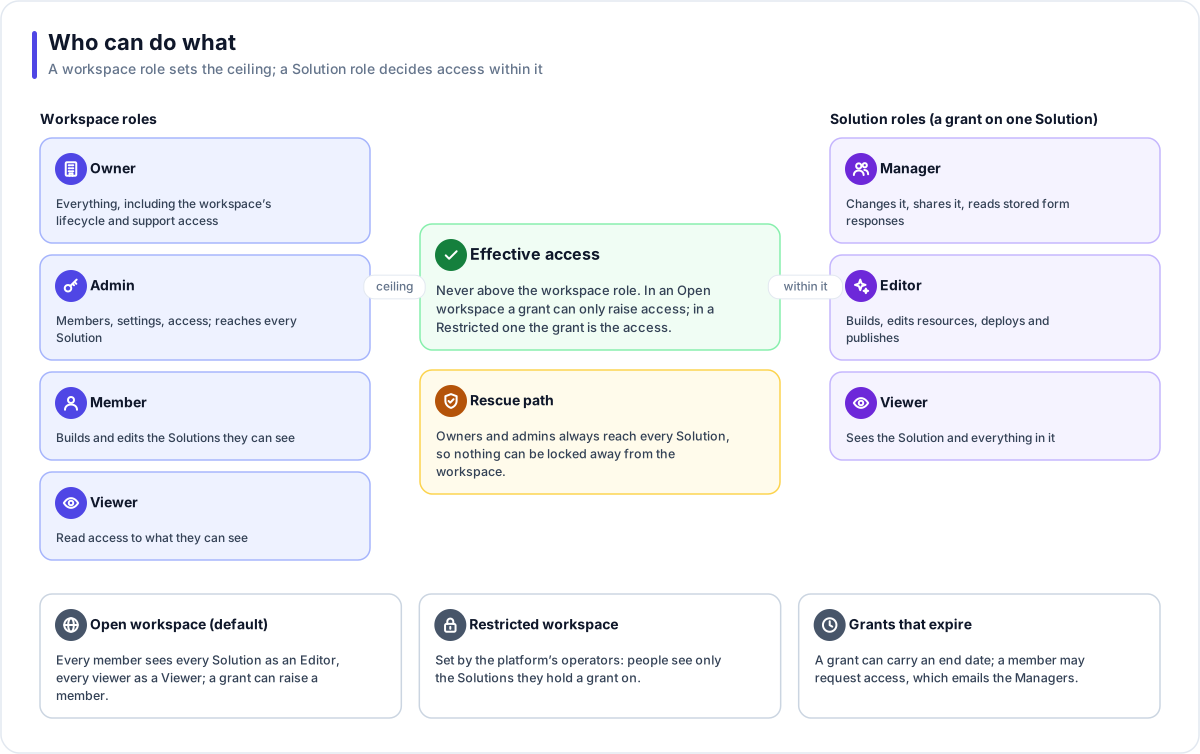
- Workspace roles. Every member holds one: Owner, Admin, Member or Viewer. It is their ceiling everywhere in the workspace.
- Solution roles. On a single Solution a person can hold Viewer, Editor or Manager. Whoever creates a Solution becomes its first Manager, and a Manager can share it with colleagues, optionally until an expiry date.
- Effective access is the lesser of the two. A workspace Viewer can hold at most Viewer on any Solution: the Share dialog shows Editor and Manager greyed out for them, with the reason, rather than hiding them. In an Open workspace a grant can only raise someone: a Member given Viewer is still an Editor there.
- Open vs Restricted. In an Open workspace every member works on every Solution as an Editor, and every viewer as a Viewer. In a Restricted workspace a person sees only the Solutions they have been added to, and everything a Solution owns follows automatically. An unshared Solution is invisible, and a link to it offers Request access, which emails its Managers. Flexday AI operators apply the Restricted setting for a workspace; switching back to Open takes effect at once.
- Owners and admins keep a rescue path. They can always reach every Solution, so a Solution whose last Manager leaves is never stranded.
What each workspace role can do
| Role | Can |
|---|---|
| Owner | Everything an Admin can, plus turning support access on or off, exporting all workspace data, seeing the workspace-wide cost total, suspending, offboarding or restoring the workspace (through the API), and granting or removing Owner. The plan itself is changed by Flexday AI. |
| Admin | Manage members and invitations, choose AI models, see usage and quotas, review support sessions, and reach every Solution. |
| Member | Build: create and change Solutions and everything in them. |
| Viewer | Look: read access to what they can see. |
Where things live in Studio
The workspace menu at the foot of the sidebar opens the workspace's own pages:
| Page | What you do there |
|---|---|
| Members | See everyone and their role, change a role, remove someone, and invite by email as Admin, Member or Viewer. Pending invitations are listed too. |
| Plan & usage | Your plan and its features; usage and quotas for owners and admins; a full data export for owners, where the plan includes it. |
| AI models | Which model runs for each use case. Admins choose an override or leave it on the platform default; everyone else sees the effective model. |
| Settings | Support access and Support sessions: who from Flexday AI has been in, with what power, why and when. |
The sidebar also holds Templates (your workspace Templates and the global catalog), Solutions (with a Your access column) and Usage (cost, narrowed to your Solutions when the workspace is Restricted).
Signing in. A workspace can use the shared Flexday AI sign-in, a dedicated sign-in pool of its own, or your own corporate single sign-on through OpenID Connect or SAML. Supported providers include Microsoft Entra ID, Microsoft Entra External ID and AWS Cognito. A workspace on its own provider is reached at its own address, through Sign in to another workspace.
Works with
- Solution: every Solution belongs to one workspace; workspace roles set the ceiling for every Solution role.
- Template: workspace Templates are visible to every member; the global catalog is published by Flexday AI for every workspace.
- Variable: secret Variables are sealed where the deployment keeps secrets, separated from every other workspace's.
- LaunchPad: on deployments that publish workspace app addresses (the
Flexday AI cloud environments do), apps are served at
<workspace>.apps.<domain>. The sharedapps.<domain>address always keeps working. - Agent and The Builder: the AI models page chooses the model per use case. The Builder always runs on Claude.
- Identity: end users of your apps sign in through Identities, not through workspace membership, and never need a Studio account.
- Platform surfaces: members work in Studio. Flexday AI staff use the Admin Console, which manages a workspace's plan, quotas, sign-in, AI models, owner and lifecycle from outside. Staff enter the workspace only through a support session, which needs support access.
Governance and limits
| Area | What applies |
|---|---|
| Boundary | Workspace isolation is enforced in the database for Solutions and everything they own, and fails closed: a request that loses its workspace scope sees none of them. Members, invitations, usage, run history and the audit trail are filtered by workspace in the application. Stored files are prefixed with the workspace. |
| Access | Four workspace roles, and Solution roles that only narrow them. There is always at least one owner. Within the workspace only an owner grants or removes Owner, and Owner cannot be given by invitation; Flexday AI staff can also seat or transfer an owner from the Admin Console. An invitation is accepted by signing in with the invited email address, through its link or at the workspace's own address. |
| Versions | A workspace has no versions of its own. Every change to members, roles, invitations, Solution sharing and settings is recorded in the audit trail with the person who made it. A change Flexday AI's operators make to the Open or Restricted setting is recorded against the platform, not a person. |
| Safety | Support sessions are time-limited and read-only unless explicitly escalated, which is audited separately. Owners are emailed when a session starts, and every staff action is attributed to that staff member. Turning support access off refuses new sessions and ends live ones on their next request. Staff can never change your sign-in configuration during a session. |
| Limits | Your plan caps Fact Base schemas, rows, storage and AI tokens, and sets a request rate. It does not cap how many Solutions or resources you create. Storage is one ceiling over File Store files and Fact Base data: a new file version adds to it and a soft delete frees nothing. The short name is fixed. After offboarding, a retention window allows the workspace to be restored. |